[ the lab · guide + recorded flights ]
AeroGuide 3D: a narrated flight over any city
Type a city and a theme — "Monuments of Imperial Rome" — and about a minute later you are flying over the real place in photorealistic 3D while a guide tells you what you are looking at. Each tour visits four to six real landmarks: the camera flies to each one, circles it slowly, and moves on when the narration ends.
November 2026 · runs on my laptop, not on this site
The app needs a Gemini key and a Google Maps key of its own, and every tour it generates costs money to run, so it isn't published here as something to click. What is published is this guide and the recorded flights below.
The flights
Four complete tours, six stops each. Every one opens on the app itself for a few seconds, then the panels drop away and the flight begins. Each tour was saved before it was recorded, so the voice you hear is the narration exactly as the app generated it. Turn the sound on — the narration is the point.
Each file is 40 to 54 MB at 1152×684, and nothing is fetched until you press play. The Google Maps attribution stays visible in every frame, as its terms require.
What a tour looks like
A tour is a sequence of stops, and every stop plays out the same way. You can sit back and watch it like a short documentary, or take the controls and explore.
- The flight. The camera glides from wherever it is to the next landmark, arriving at an angle chosen to show it well.
- The orbit. Once there, it makes one slow circle around the landmark so you see it from every side.
- The narration. A spoken guide describes the place in two or three sentences. The same words appear on screen as text, with one extra fact about the architecture or history.
- The handover. When both the flight and the narration have finished, the tour moves to the next stop by itself.
Numbered pins mark every stop on the map, and the current one is highlighted. A panel on the left lists the full itinerary with coordinates, plus links to each place on Google Maps.
Taking a tour
A tour starts from a single line of text and needs no other setup.
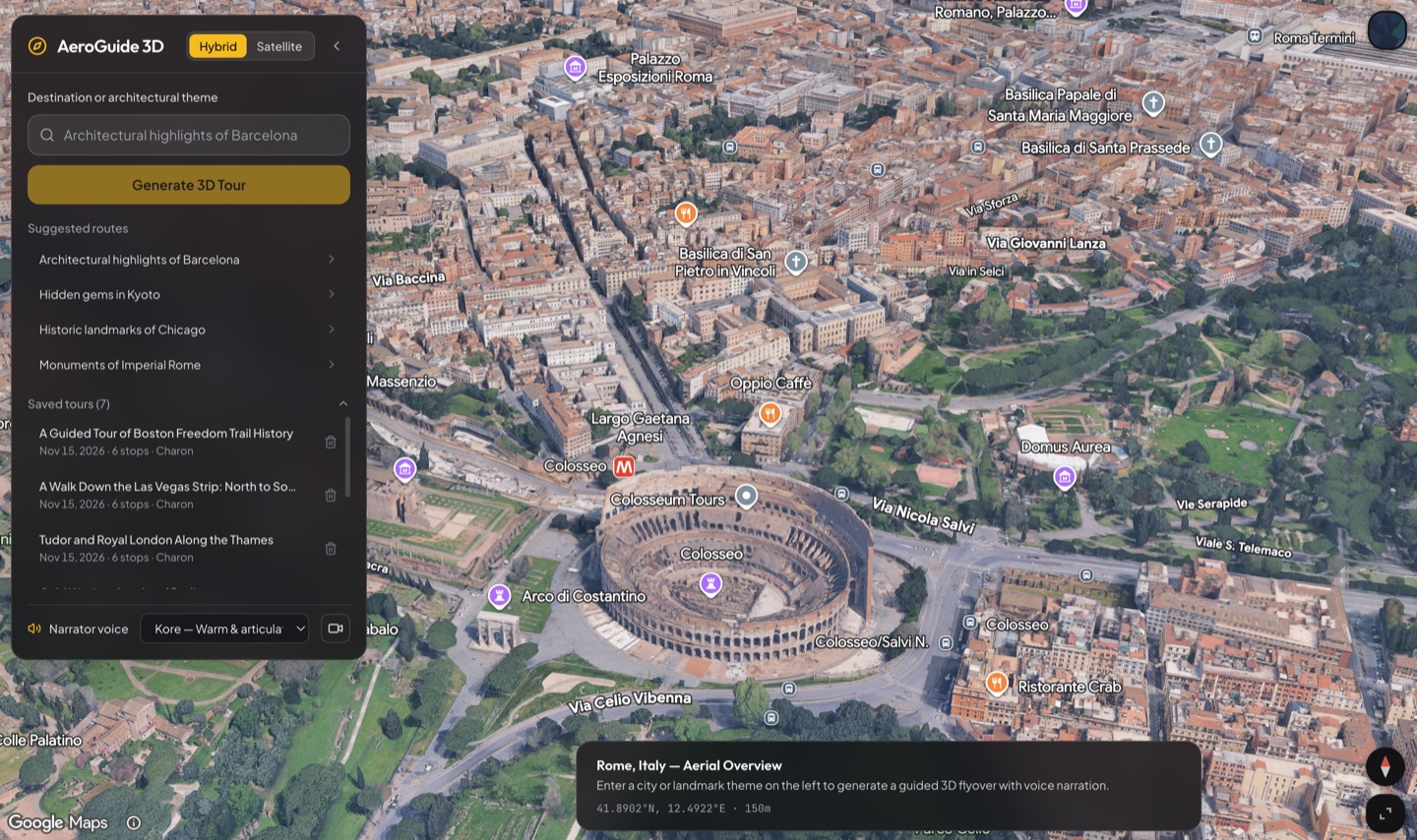
// the panel you start from: the theme box, the suggested routes, and the saved tours below them
- Describe the tour. Type a destination or theme in the box at the top left, or pick one of the four suggested routes.
- Choose a narrator. Five voices are available. You can change voice at any time, and the current stop is read again in the new voice.
- Press Generate 3D Tour. The app researches real places and writes the script. This takes roughly a minute.
- Watch. The tour starts at the first stop and plays through to the last without further input.
| Voice | Character |
|---|---|
| Kore | Warm and articulate |
| Puck | Bright and energetic |
| Charon | Deep and measured |
| Fenrir | Crisp, documentary style |
| Aoede | Melodic and expressive |
Controls
The bar at the bottom of the screen controls playback.
- Pause / Play Auto-Tour
- Stops and resumes the automatic progression.
- Previous · Next
- Moves one stop back or forward.
- Replay Narration
- Reads the current stop again.
- Mute
- Silences the voice while the text stays on screen.
- Hybrid · Satellite
- Hybrid shows place names and roads over the imagery; Satellite shows imagery alone. The arrow beside them folds the panel away to give the map more room.
You can also jump straight to any stop by clicking its pin on the map or its entry in the itinerary. The map itself stays interactive: drag to look around and scroll to zoom. Doing so pauses the automatic tour, so you can explore and then press Play to carry on.
Asking for a good tour
The best requests name one city and one theme. The camera views each landmark from a few hundred metres away, and that shapes what works.
- Stay in one city or compact area. Stops that are close together give short, smooth flights. A request spanning a whole country sends the camera on long hauls between stops.
- Ask for things that read well from the air. Towers, cathedrals, bridges, stadiums, castles and waterfronts stand out. A famous café or a small statue gets lost at that distance.
- Favour places with detailed 3D imagery. Large cities are usually modelled building by building. Remote areas may appear as flat aerial photography.
- Give it an angle. A theme produces a more coherent script than a general list of top sights.
| Theme | Example request |
|---|---|
| Architecture | Art Deco skyscrapers of Manhattan |
| Architecture | Gaudí's buildings in Barcelona |
| History | Medieval Prague from the castle to the Old Town |
| History | Cold War landmarks of Berlin |
| Engineering | Great bridges of San Francisco Bay |
| Skylines | Sydney Harbour from the Opera House to the Bridge |
| Culture | Museums on the National Mall in Washington |
| Natural settings | Rio de Janeiro from Sugarloaf to Christ the Redeemer |
You can also steer the route, for example "five churches of Florence, ending at the Duomo". The app orders stops for a sensible flight path, and naming a start or finish gives you more control.
The built-in suggestions for Rome, Barcelona and Kyoto have been run as full tours, as have Manhattan, Prague, Berlin, London, Boston and Las Vegas. The rest of the requests in the table are untested candidates chosen to fit the guidance above.
Saving tours to replay later
A tour you like can be saved and played back at any time, with exactly the same stops, camera angles and narration.
- To save, press Save tour beside the tour's title. The button becomes a Saved badge when it is done. Saving can take up to about 20 seconds if some stops have not been narrated yet.
- To replay, open Saved tours in the left panel and click a title. The tour starts at the first stop straight away, in the voice it was saved with, with no minute-long wait.
- To delete, click the bin icon beside a saved tour and confirm with Delete. Deletion is permanent.
A saved tour keeps its narration audio as well as its script, so every replay sounds identical. A six-stop tour takes up roughly 6 to 7 MB.
Recording a tour as a video
Recording mode clears the screen so a tour can be captured as a clean video. It hides the planning panel and the playback bar, leaving the map, the numbered pins, and a small caption with the stop number, tour title and landmark name. Every flight on this page was made this way.
- Load a saved tour, or generate a new one and let it start.
- Press R, or click the camera button beside the narrator voice selector.
- Start your screen recorder.
- Click once on the map so the app has the keyboard, then press Space. The tour restarts from the first stop.
- When the tour ends, stop the recorder and press Esc to bring the panels back.
Keep your hands off the mouse while recording: dragging or scrolling the map pauses the tour. Saved tours suit recording best — every take has the same narration, and nothing needs to be generated while the recorder is running.
Good to know
A few practical limits are worth knowing before you start.
- Generation takes about a minute. A new tour shows a "Charting Tour" indicator for 45 to 60 seconds before anything moves. Saved tours start immediately.
- The script is written by AI. Places and coordinates are checked against Google Maps, and the sources are listed in the left panel. The narration and facts are generated text, so verify anything you intend to quote.
- If the voice is unavailable, the tour continues. The narration text stays on screen and the tour moves on after a short reading pause.
- The 3D map needs a capable browser. On a device without hardware-accelerated graphics, the app shows a simplified view in place of the 3D map, while the itinerary and narration still work.
- Published recordings need attribution. The Google Maps logo stays visible in every video here, and Google's terms govern publishing or keeping tours long-term.
Want something like this for your team?
A short plan back within 2 business days: problem, approach, deliverables, price, timeline.